How to Enable Cookies in Your Browser (Chrome, Safari, Firefox & Edge)
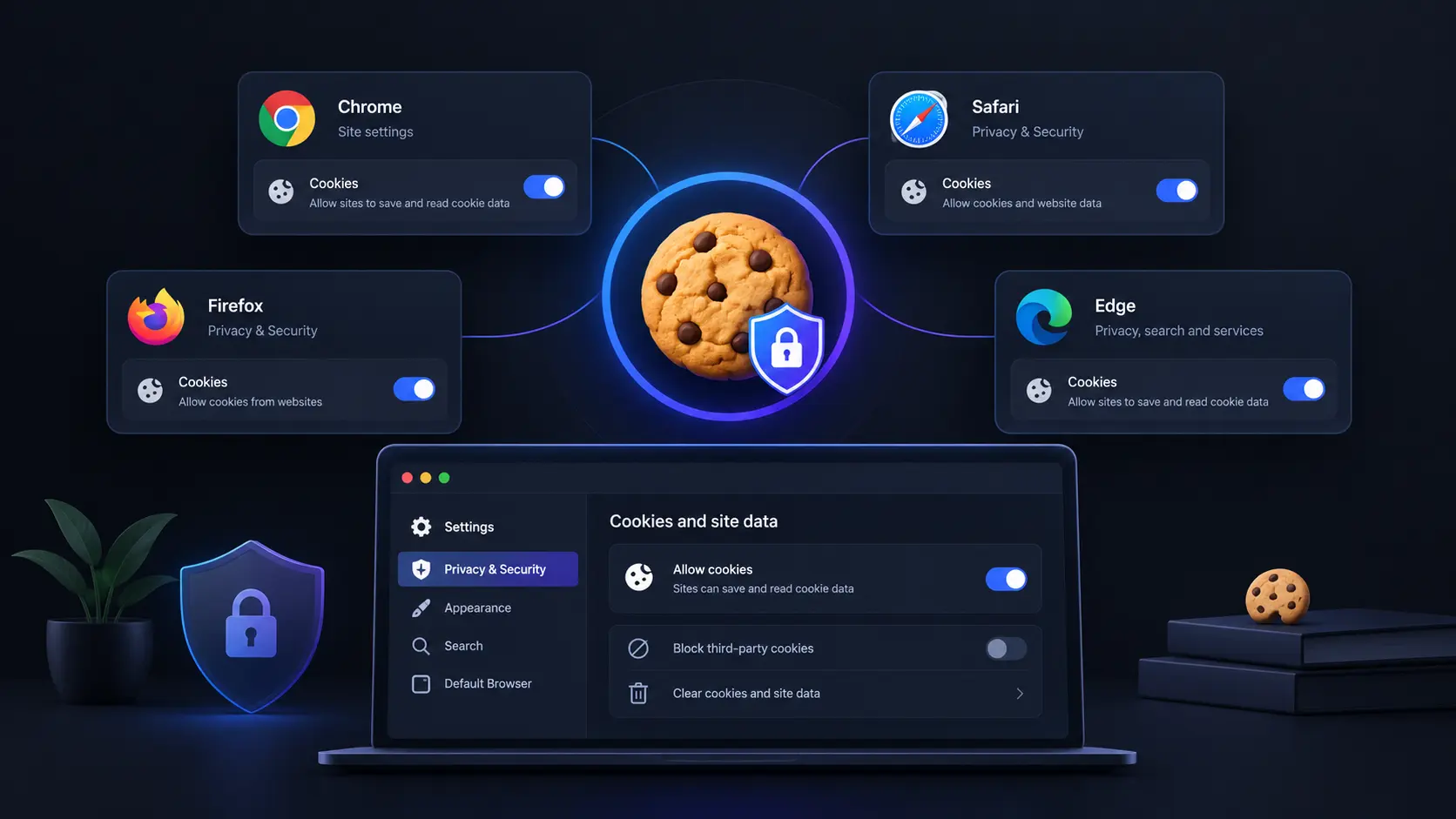
A website can appear broken even when your internet connection is fine. A login may keep sending us back to the sign-in page, a shopping cart may empty itself, or a payment form may refuse to load. Website Cookies are often part of the problem.
The important detail is that enabling cookies no longer means simply turning every cookie on. Modern browsers separate normal site data from third-party cookies and add privacy protections that can block cross-site tracking. Chrome, Firefox, Safari, and Edge now give us more control over which sites can store data and which third parties can access it.
That means the best fix is often to enable cookies for the website that needs them, rather than weakening every privacy setting in the browser.
What Does It Mean to Enable Cookies?
Websites store small pieces of information in our browser, known as cookies, to remember certain details and preferences. They allow websites to remember useful details, such as our login status, selected preferences, items added to a cart, and information needed as we move from one page to another.
There is an important difference between first-party cookies and third-party cookies. A first-party cookie is placed in your browser directly by the website you are visiting. A third-party cookie comes from another service included on that website. Google explains that third-party cookies can be blocked separately from other site data in Chrome.
This distinction explains why a website can work normally after we enable basic cookies while still showing an error related to a third-party service.
For a broader explanation, see Website Cookies.
How to Enable Cookies in Google Chrome
Chrome’s current settings separate third-party cookies from other website data. Google also recommends allowing sites to save data so websites to work normally.
On a Windows or Mac computer
- Open Chrome.
- Select the three-dot menu in the top-right corner.
- Choose Settings.
- Select Privacy and security.
- Open Third-party cookies.
- Choose Allow third-party cookies if the website specifically requires them.
If we only need cookies for one website, Chrome lets us add that website to the allowed list instead of allowing third-party cookies everywhere.
On Android
- Open Chrome.
- Tap the three-dot menu.
- Select Settings.
- Tap Site settings.
- Select Third-party cookies.
- Choose the setting that fits the website we are using.
Chrome also supports site-specific exceptions, which can be useful when one service fails while the rest of the web works normally.
Practical tip: If a website only says that cookies are disabled, do not immediately allow every third-party cookie. Try a site-specific exception first.
How to Enable Cookies in Safari
Safari takes a different approach because Apple focuses heavily on limiting cross-site tracking.
On a Mac
- Open Safari.
- Select Safari > Settings.
- Open Advanced.
- Ensure the Block all cookies option is disabled.
Apple states that blocking all cookies can prevent some websites from working correctly.
Safari also has a separate Prevent cross-site tracking option. Keeping this enabled can block third-party tracking while still allowing normal first-party website data to work.
This is an important distinction. We usually do not need to disable Safari’s privacy protections just because a website needs cookies.
On an iPhone
- Open Settings.
- Tap Apps.
- Select Safari.
- Tap Advanced.
- Turn off Block All Cookies.
Apple’s current iPhone guidance confirms that disabling this setting allows websites that require cookies to work normally.
If a particular website still fails, check Safari’s Prevent Cross-Site Tracking setting. Safari limits third-party cookies and related data by default.
For related privacy settings, see Safari privacy and tracking settings.
How to Enable Cookies in Mozilla Firefox
Firefox comes with stronger privacy protections enabled by default than many people realize. Its Enhanced Tracking Protection blocks known trackers, and Firefox’s Total Cookie Protection isolates cookies so websites cannot easily use them to track us across other sites. Complete Cookie Protection is enabled by default in the Firefox browser.
To allow cookies more broadly
- Open Firefox.
- Select the menu button.
- Choose Settings.
- Select Privacy & Security.
- Review Enhanced Tracking Protection.
- Choose Standard, or select Custom and adjust cookie protection.
Firefox allows us to change cookie controls without turning off every privacy feature.
If only one website is broken
Visit the affected website and select the shield icon beside the address bar. Firefox allows us to turn Enhanced Tracking Protection off for that specific website. The page then reloads with the site’s protection exception.
This is often the better approach because blocking cross-site cookies can cause some websites, login systems, payment forms and embedded services to stop working.
How to Enable Cookies in Microsoft Edge
Edge gives us global and site-specific cookie controls.
On Windows
- Open Edge.
- Select Settings and more.
- Choose Settings.
- Open Privacy, search, and services.
- Select Cookies.
- Turn on Allow sites to save and read cookie data.
Microsoft lists this as the setting that allows websites to save and retrieve cookie data.
Edge also lets us block third-party cookies separately. If one website needs them, we can add that website under the allowed cookie list rather than changing the setting for every site.
Why Cookies Can Be Enabled but a Website Still Does Not Work
This is the part many cookie guides miss.
Turning cookies on does not guarantee that every website will work. A site may depend on third-party cookies, JavaScript, pop-ups, browser permissions, an embedded payment service, or another component that has been blocked.
For example, Firefox explains that blocking third-party tracking can sometimes prevent images, videos, login buttons, or payment forms from working correctly.
We can troubleshoot in this order:
- Refresh the website after changing cookie settings.
- Check whether the problem happens in another browser.
- Allow cookies for the specific website.
- Check whether third-party cookies are required.
- Clear the affected site’s stored data.
- Check browser extensions or content blockers.
- If the website is not working in private or Incognito mode, switch to a regular browser window.
Some browsers apply stricter cookie restrictions in private browsing. For example, Chrome blocks third-party cookies by default in Incognito mode. If the issue affects only one website, a site-specific exception is usually more precise than changing global browser settings.
Should We Allow All Website Cookies?
Not necessarily.
Cookies can provide useful features, but third-party cookies can also be used for cross-site tracking. Modern browsers increasingly separate useful website storage from tracking protection.
A sensible setup is to allow normal first-party cookies while keeping third-party tracking protections enabled. Then create an exception only when a trusted website genuinely needs additional access.
This approach gives us a better balance between website functionality and privacy than simply selecting “allow everything.”
Conclusion
The most useful way to enable cookies is not to switch every privacy feature off. Chrome, Safari, Firefox and Edge now give us more precise controls, including ways to allow website data while limiting third-party tracking.
If a website is failing, start with the smallest change that fixes the problem. Allow cookies for that site, check whether third-party cookies are required, and keep broader tracking protections enabled where possible. That approach can restore website functionality without giving every site and third-party service unrestricted access to our browser data.
FAQs
Cookies can help a website remember a login session, but they generally do not store our actual password in plain text. Password managers and browser password storage handle saved passwords separately.
The site may not be able to save its consent choice, or its required cookie may be blocked or deleted. Privacy settings, browser extensions, and automatic deletion settings can all affect stored site data.
Not necessarily. Cookies and browsing history are different types of browser data. Clearing cookies can sign us out of websites and remove saved site preferences without necessarily deleting the entire browsing history.
Cookies themselves are not automatically harmful. They are a normal web technology. The privacy concern mainly comes from how some cookies and related tracking technologies are used, especially across multiple websites.